

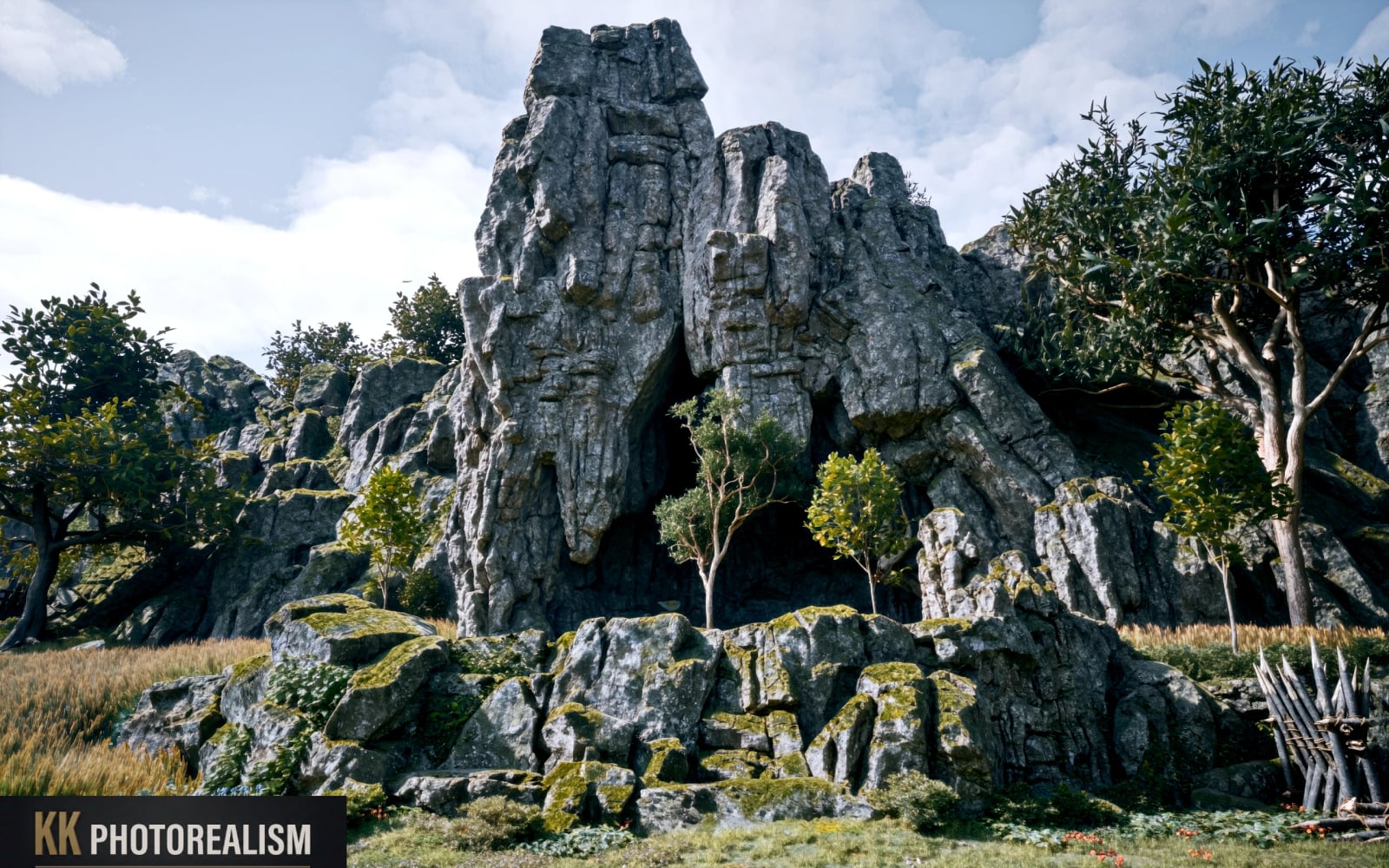
KK Photorealism Avowed Neural DLSS 5 ReShade Preset v1
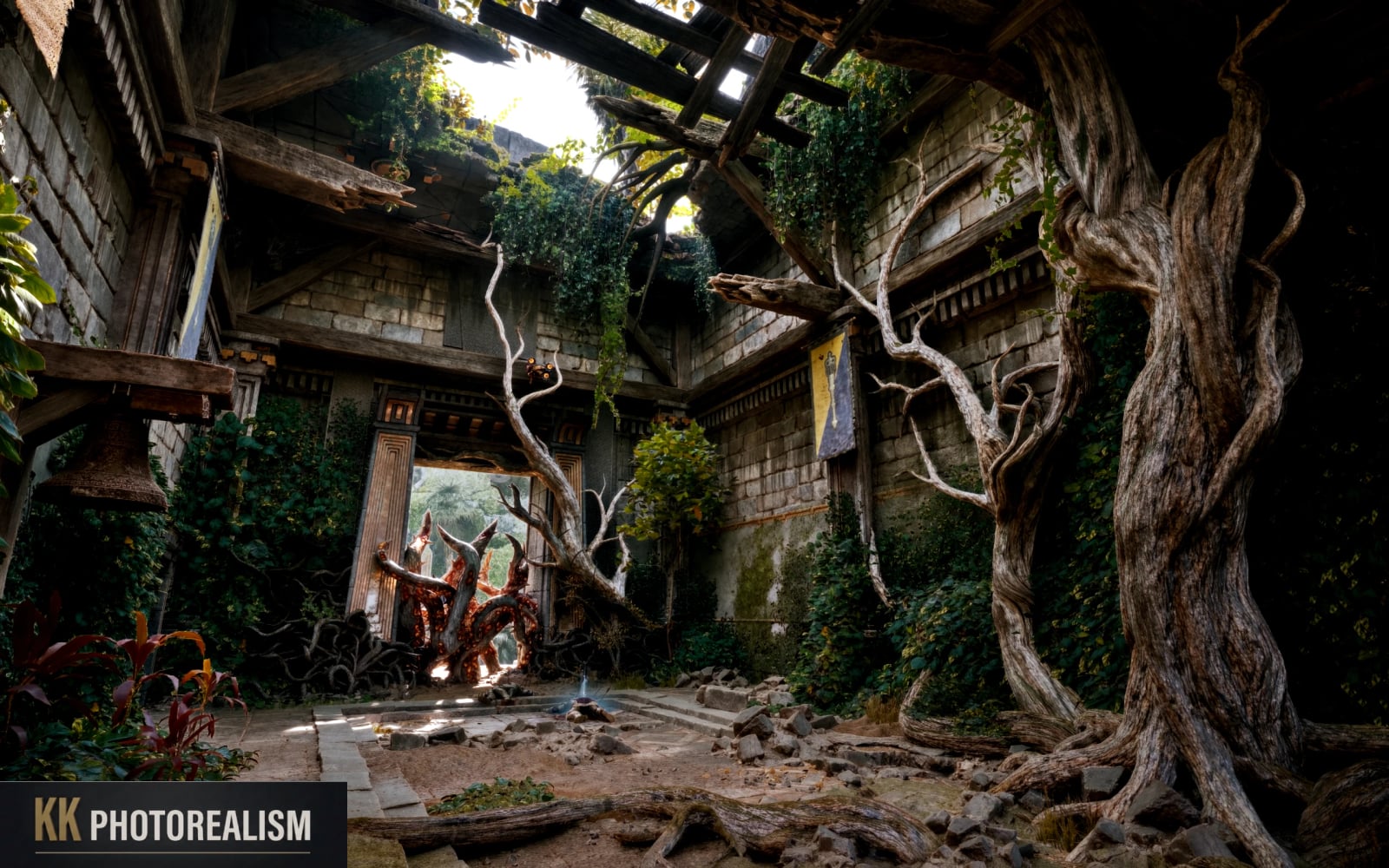
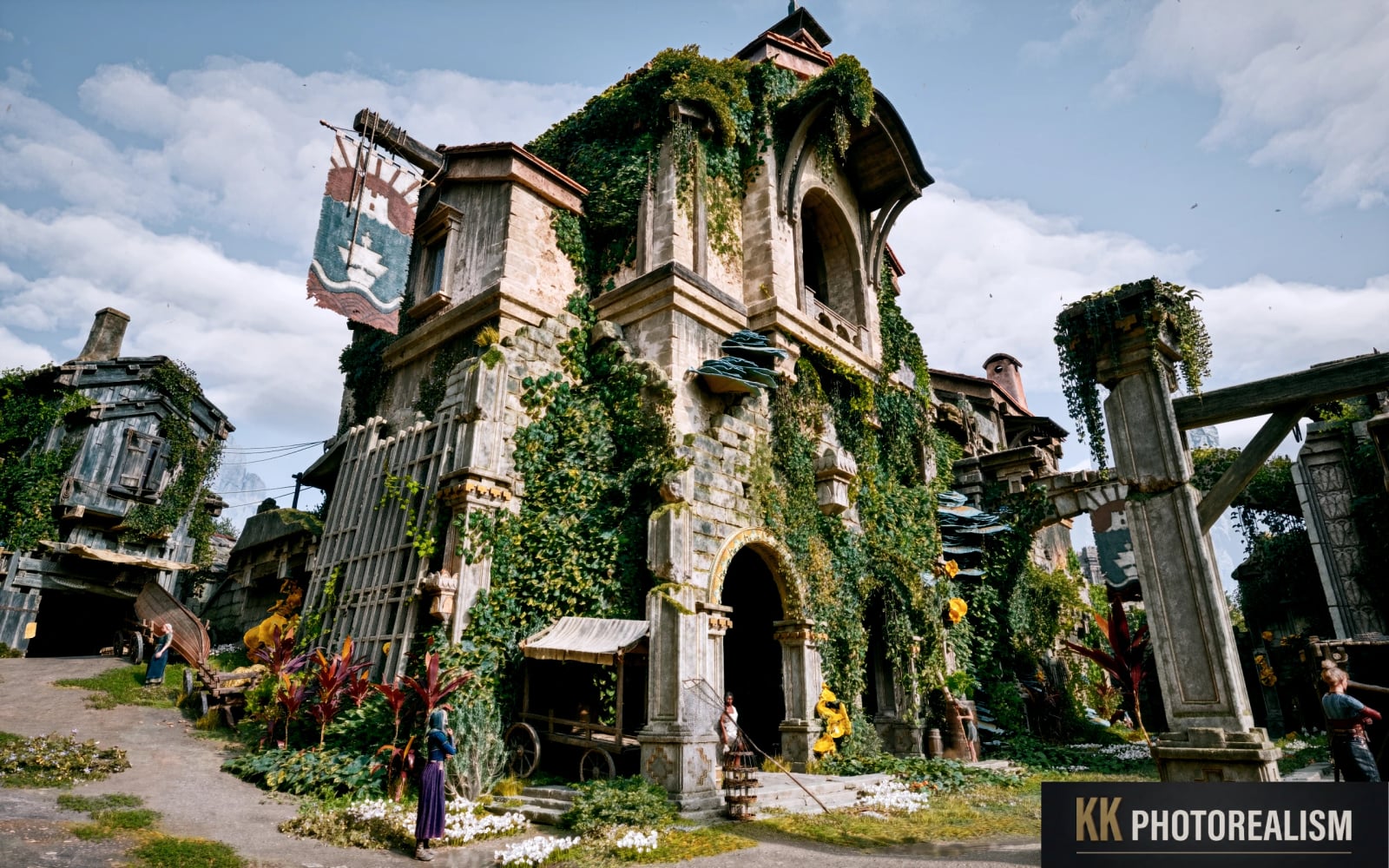
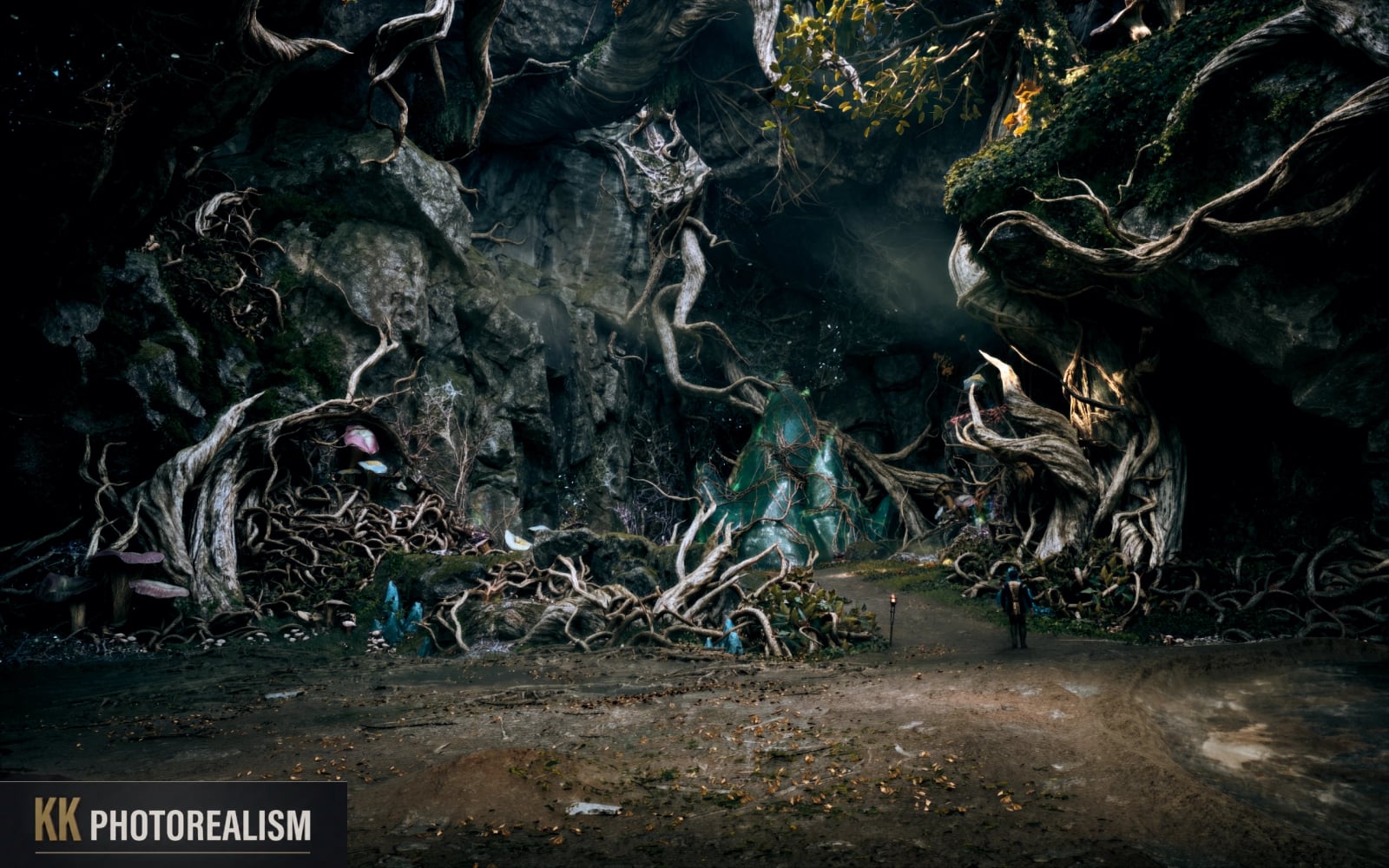
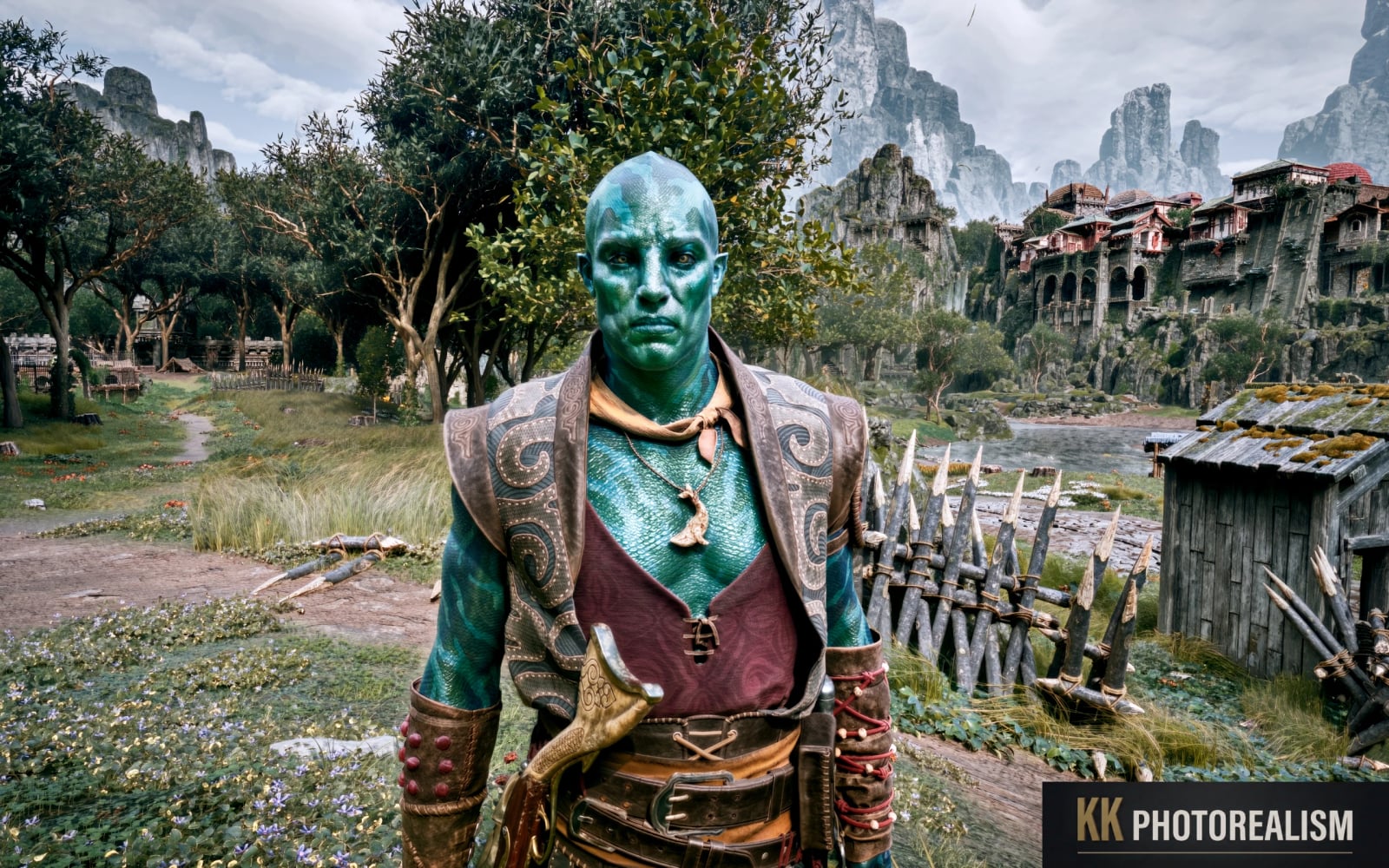
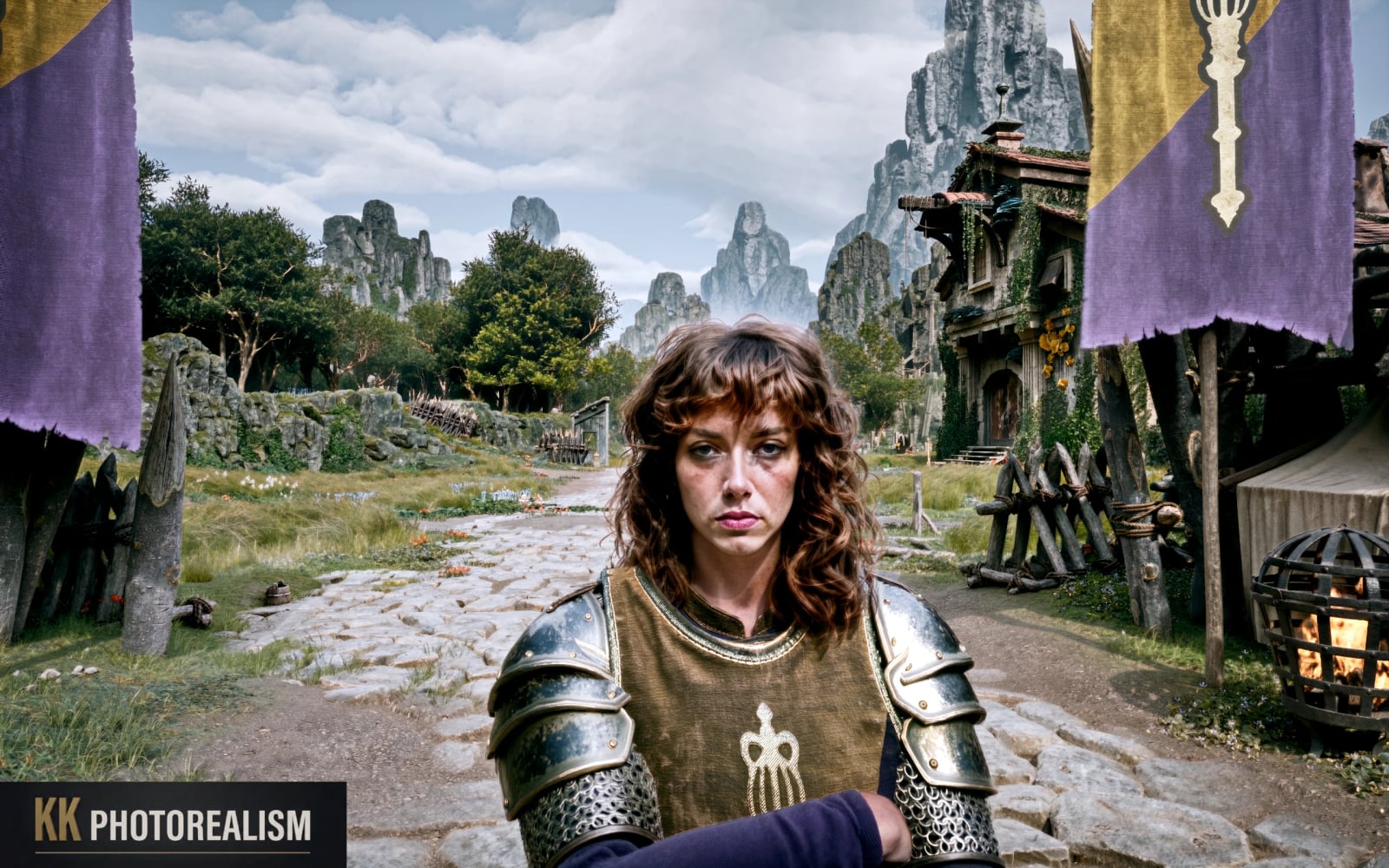
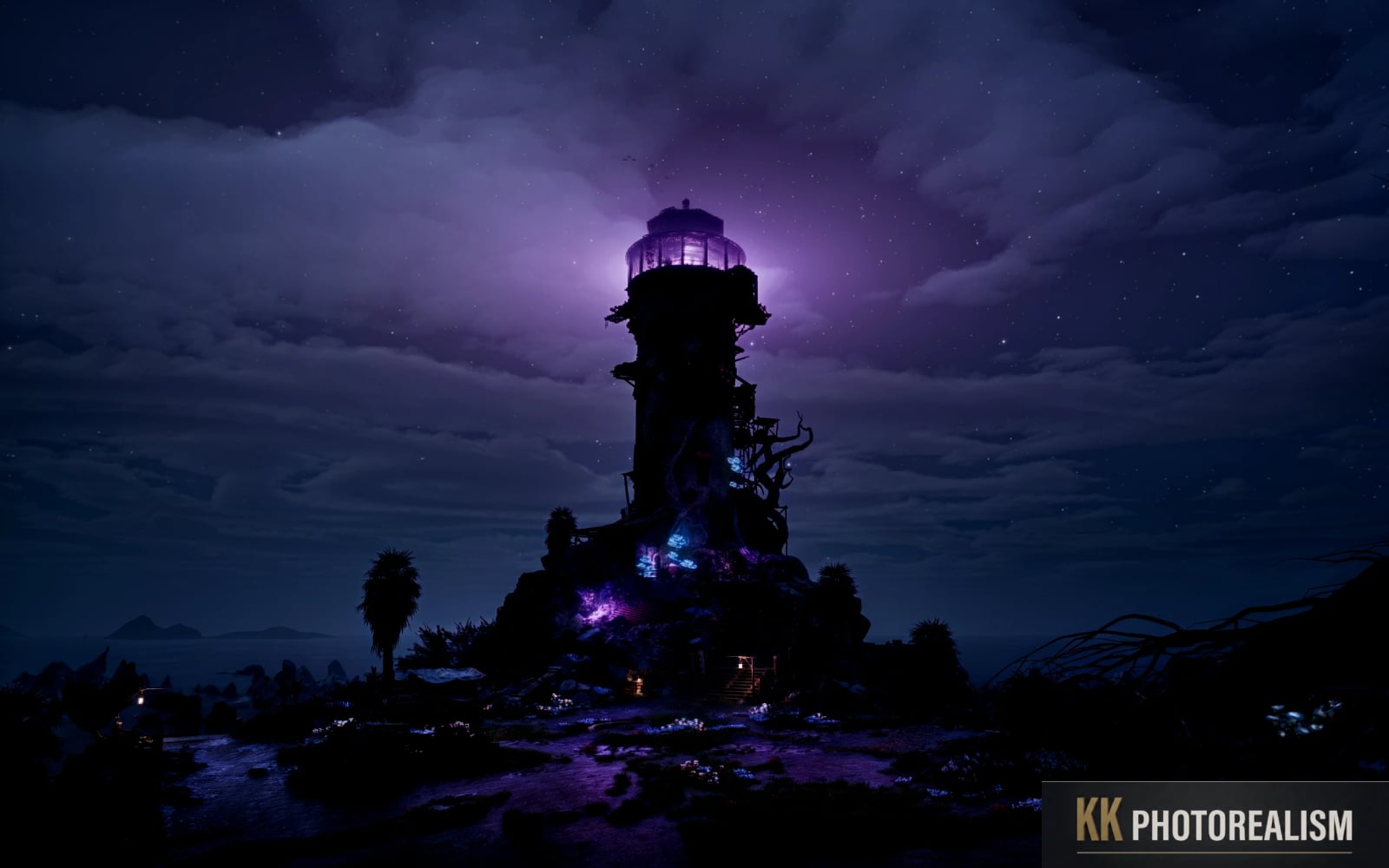
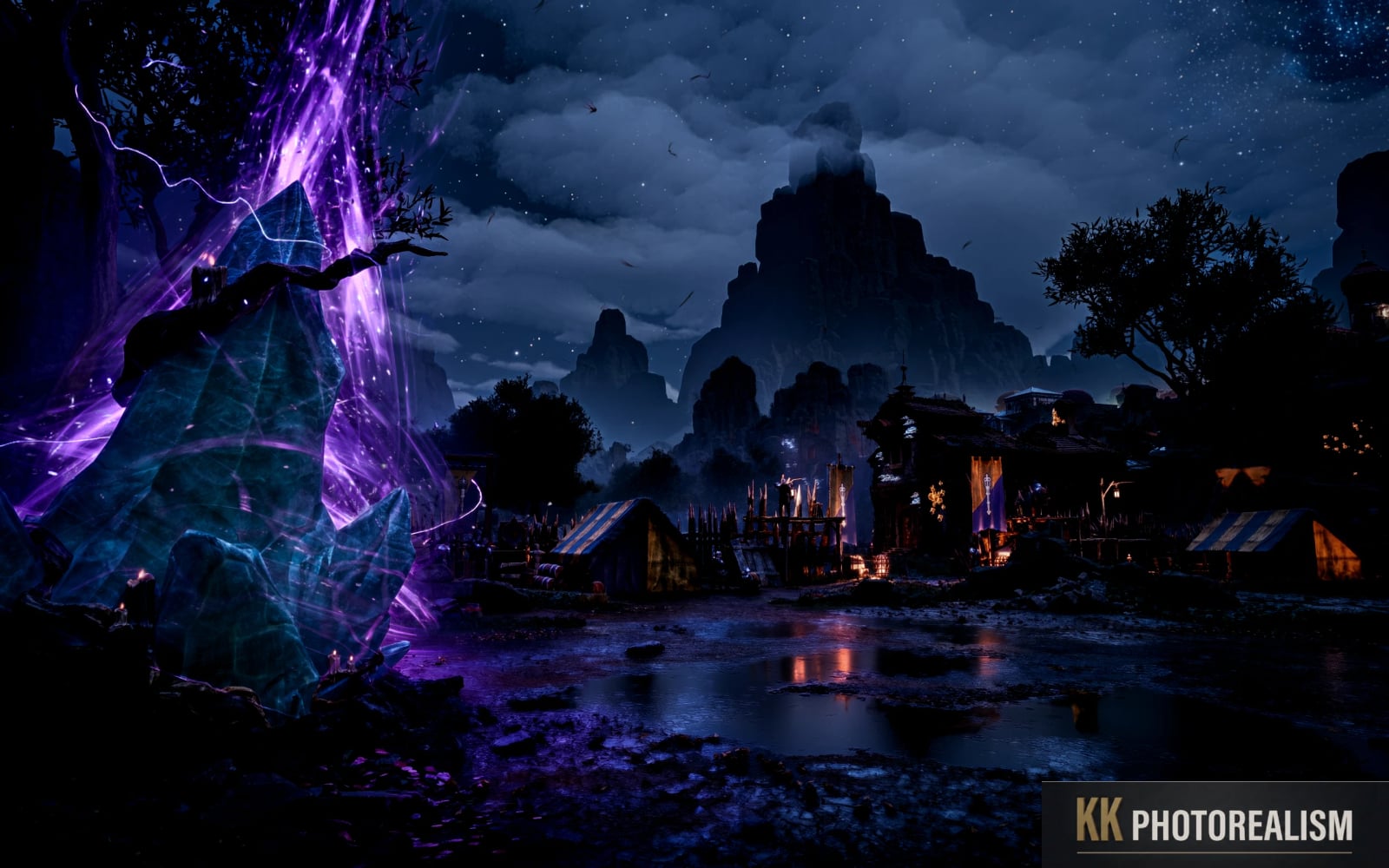
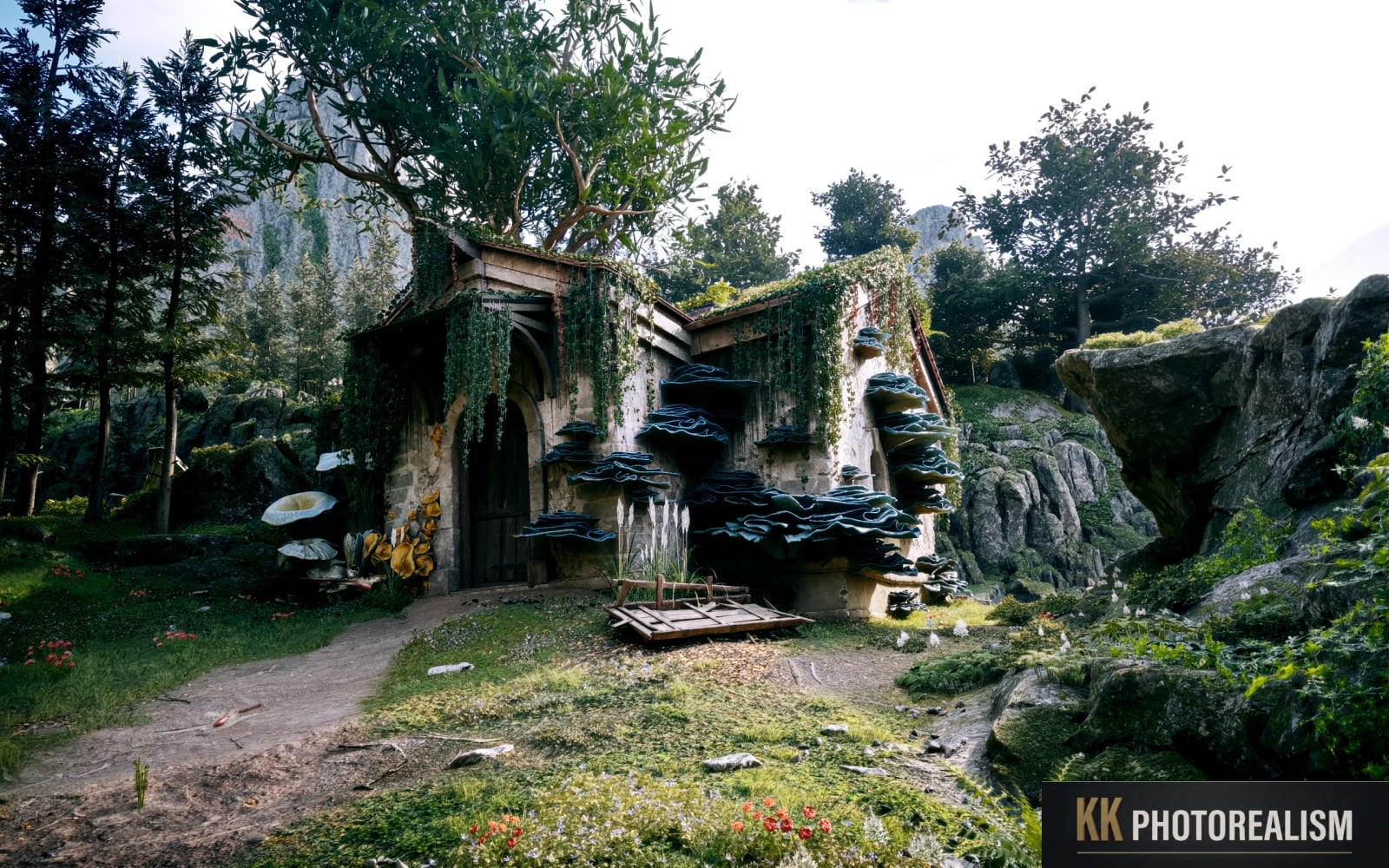
Avowed KK Photorealism is a custom ReShade preset combined with DLSS 5 integration, focused on visual fidelity, lighting depth, and surface realism.
Note: All screenshots and the custom ReShade preset are 100% my own work and were not generated or altered using AI.
Features
- Advanced color grading for a natural, grounded, and highly atmospheric aesthetic.
- Enhanced contrast and chiaroscuro to boost shadow depth and light interplay across environments, armor, and foliage.
- DLSS 5 integration with an optimized scaling configuration for visual clarity.
Installation
Note: Make sure your game folder is clean from conflicting preset files.
- Download and install ReShade.
Install ReShade with Add-on Support. Run the installer and search for thegamelaunchhelper.exefile in the game folder, notAvowed.exe. On the next page, select the DX12 library. Then choose the required shaders:
- From SweetFX by CeeJay.dk:
Technicolor.fx - From Legacy effects:
LevelsPlus.fx - From GShade-Shaders by Marot:
Clarity2.fx
- Download and install DLSS 5 Manager.
Download the latest version of DLSS5 manager and run the installer.Run DLSS5 manager and search for Avowed in the list. If the list is empty, select the plus icon at the top and click “Detect game automatically”. The Avowed icon should appear, so click on it. In the next window, select “change.exe” and change the exe file from
Avowed.exetogamelaunchhelper.exe.Install the “Multipass” DLSS 5 version.
- Download and drop the preset file KK Photorealism Avowed.
Drop the preset file “Avowed KK Photorealism” directly into the main game folder wheregamelaunchhelper.exeis located.
Settings and configuration
In-game settings, ReShade and DLSS 5 configuration
Once in-game, press the HOME key and use the arrows at the top to select KK Photorealism Avowed.
Next, navigate to the last tab for DLSS 5 Neural Rendering:
- Set Hook point to Upscaled.
- Set Preset to Default and Style to Cinematic.
- Set Stack passes to 2.
Performance tips
Adjust the Resolution Scale slider if you need more FPS.
As a final option, you can lower the Stack passes value to 1.


